

Step-by-Step Guide
Open the plugin in Tools > MetaHuman > MetaHuman Optimizer and select the Face Optimizer tab (the first one).
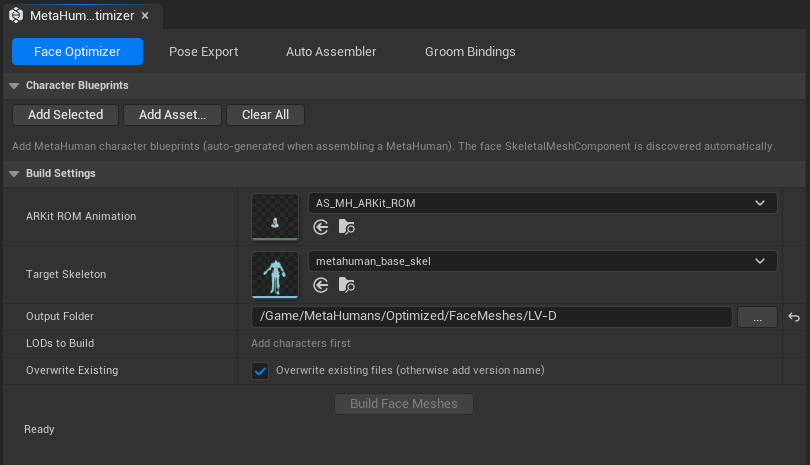
1. Select your source face mesh(es)
In the content browser navigate to your MetaHuman face skeletal mesh, select it and click on Add Selected. Typically this asset is named SKM_<CharacterName>_FaceMesh and you will find it under /MetaHumans/Creator/<CharacterName>/Face/. You can also select and add multiple faces at once for batch processing.
Note
If you haven't already, please check the MetaHuman Settings guide to know how to assemble your source mesh and get the best results.
2. Check the ARKit animation sequence
The ARKit animation field is pre-filled with the animation that ships inside the plugin:
/MetaHumanOptimizer/Animation/AS_MH_ARKit_ROM
You normally never need to change this. If it shows as missing, check that the required plugins are enabled (see Requirements).
3. Set the output asset path
Type or browse to a Content Browser path where the output mesh asset will be saved. In our template file we use /Game/MetaHumans/Optimized/FaceMeshes/.
4. Select LODs
After adding a source mesh, the available LODs will show up as checkboxes. If you followed our recommended assembly settings (Cinematic pipeline), select Cinematic LOD3 (Lv-D) for general real-time use, or Cinematic LOD2 (Lv-C) for cinematics and close-up dialogue.
Tip
See MetaHuman Settings for the full geometry level breakdown and section counts per level.
Building several LODs into one mesh
By default you pick a single LOD. Tick Multi-LOD to select more than one and build them all into a single face mesh, up to all eight.
Each LOD keeps its own geometry and its own full set of 52 morph targets, so facial animation keeps working at every distance. The material slots are shared across the whole mesh: you get one named slot per geometry role (Skin, Teeth, EyeLeft and so on) rather than one set per LOD, and every LOD points its sections at the correct ones.
5. Choose the output name
The output mesh is named SKM_<CharacterName>_<NameSuffix>_<LODSuffix>. The Preview line under these settings shows the exact name before you build.
- Name Suffix: text added after the character name. The default is
Optimized, but you can type anything, or untick it to leave it out. - LOD Suffix: what is added at the end to tell LODs apart:
- Level letter (default): the geometry level letter, from A to H. The letter names the real polygon count, so it means the same thing on every pipeline: Cinematic LOD3, High LOD1 and Medium LOD0 are all
_D. See MetaHuman Settings for the full table. - LOD number: the source LOD index, for example
_LOD3. The same number means different geometry on different pipelines. - None: nothing is added.
- Level letter (default): the geometry level letter, from A to H. The letter names the real polygon count, so it means the same thing on every pipeline: Cinematic LOD3, High LOD1 and Medium LOD0 are all
Multi-LOD builds join the suffixes in order, for example _ACF or _LOD013.
With the default settings, a Cinematic LOD3 build of a character named Emma is saved as SKM_Emma_Optimized_D.
Note
Other tabs, such as Groom Bindings, use the mesh name exactly as it is. If you want shorter names downstream, change the suffixes here before you build.
6. Overwrite Existing
If an asset already exists at the output path, the Overwrite Existing toggle controls whether it gets replaced. When disabled, the tool will skip the build and log a warning instead.
7. Click "Build"
Hit the Build button. The editor will become unresponsive for a short time while the tool:
- Spawns a temporary mesh
- Runs through all 52 ARKit poses and captures vertex data
- Bakes the deltas as morph targets
- Strips the facial bones
- Saves the new asset
Note
The freeze typically lasts 8~10 seconds per mesh, depending on vertex count and machine speed. The operation runs synchronously, do not force-close the editor.
Verifying the Output
The Face Optimizer creates a new Skeletal Mesh asset in your output folder, named as shown in the Preview line (by default SKM_<CharacterName>_Optimized_<Level>, for example SKM_Emma_Optimized_D). Open it and check that it contains:
- The face geometry of the LODs you selected, and only those. The lowest LOD you selected becomes LOD0 of the new mesh.
- 52 morph targets for each LOD (standard Apple ARKit52 poses)
- The stripped skeleton (root, spine, neck, head only)
- The original material slots, preserved in order
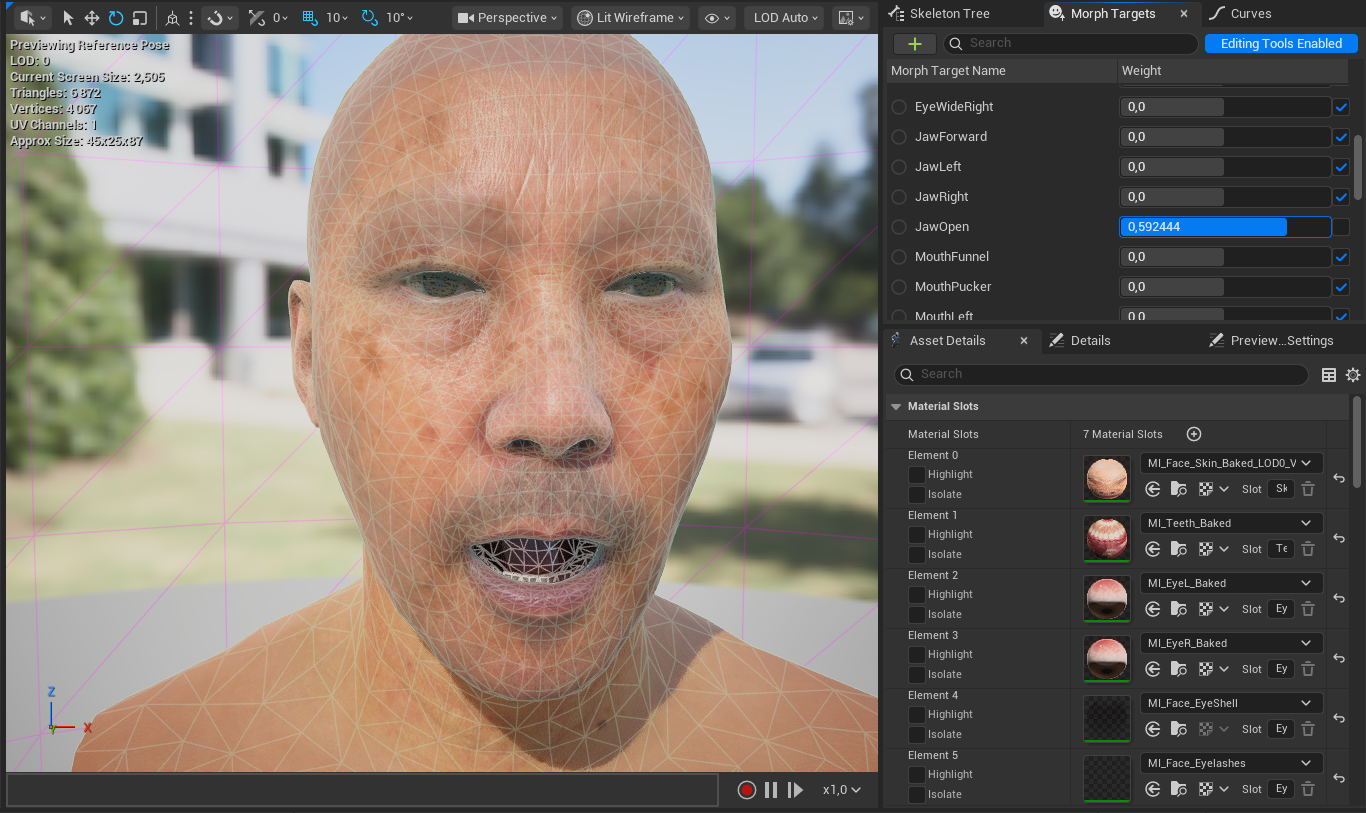
Open the Morph Targets tab at the top right, you should see all 52 poses (EyeBlinkLeft, JawOpen, MouthSmileLeft, etc.). Use the weight sliders to preview each pose directly in the viewport.
Switch to the Skeleton tab to confirm the bone strip worked correctly: you should see a short chain of bones (root, pelvis/spine, neck, head) with no facial_* bones.
Tip
By default Material slots are preserved in the same order as the source mesh. If you need to reorder them, before running the optimize in the asset selector click the dropdown arrow next to the character name and manually reorder the slots.